


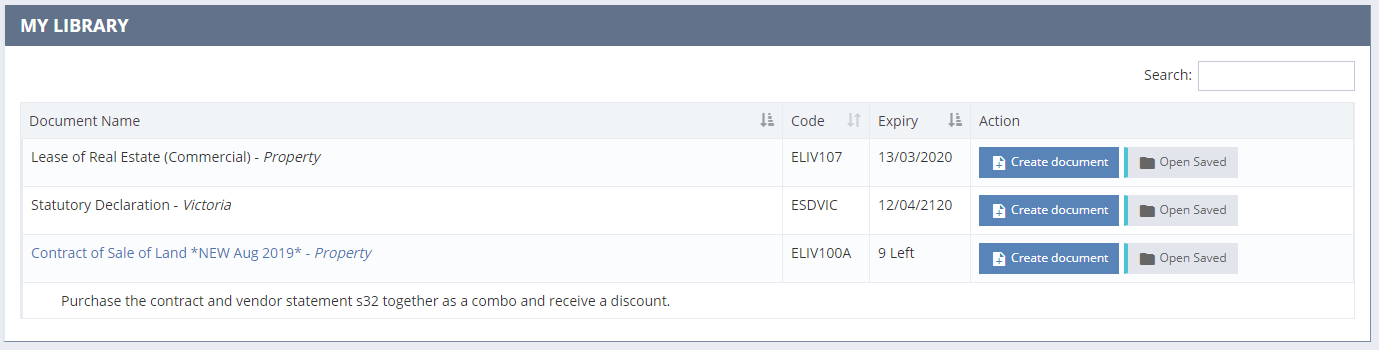
From the home screen on the left hand side is "📄 My Form Library," which contains all of the forms you have purchased/have access to.
Scroll through the forms then click "Create Document."
At the prompt, enter a reference name (and a template if you have created one for this form), then click "Save and create form."
Note: The reference name will appear on your document at the bottom of the front page.
You will see your form on screen. Work through the form to type in your required information in the spaces provided (fields). If any text exceeds the field space it will turn red and automatically generate to an annexure. At the bottom of the screen will be the following buttons (from left to right):
- Add/Remove PDF
- Save As...(to save a duplicate of the form with a different name)
- Save
- Preview/Print (creates an on-screen PDF to print or download)
- Close
