


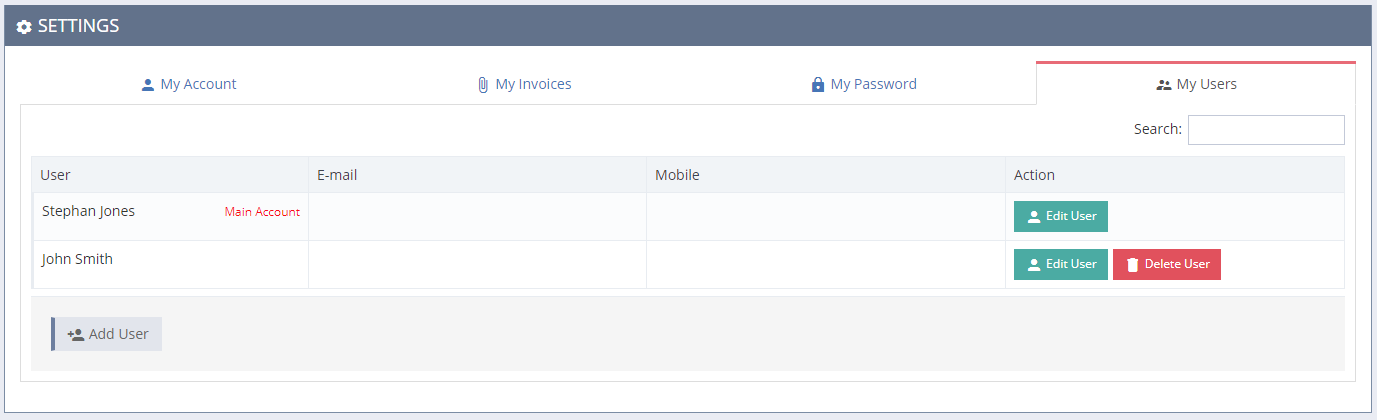
Use the "My users" drop down under "Settings" to manage access for your staff.
Important! - This is only to be done by the Administrator/Principal.
Each User is to be enabled and will need to have their own valid email address.
Go to "My users" and click "Add User."
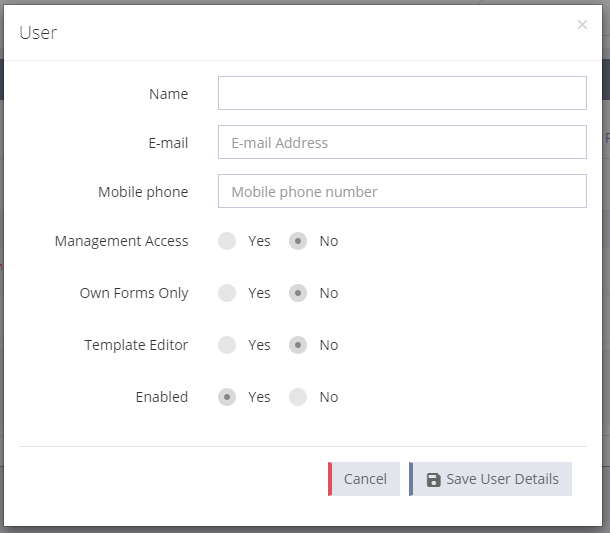
Another window will open.
Type in their name, email, and mobile phone number. From here, you can choose to enable their level of access:
Management Access
Promotes the user's admin privileges such that they are the main user.
Own Forms Only
When checked "Yes" the user will not be able to edit any forms that are not theirs. When checked "No" the user will be able to edit forms across the account/agency.
Template Editor
When checked "Yes" the user can create/edit/delete templates across the account/agency. This role is useful for staff or support personnel who create documents for the firm/agents.
Enabled
This access level is used to switch a users access on or off. Select "Yes" to enable their access.
Once a user is added, elawforms (sales@elawforms.com.au) will automatically send an email to that user with the subject line "Your new elawforms password."
The email contains a temporary password. The user will then need to login using their emial address and the temporary password. Once the user has logged in, they should update their password. Click here to see how this is done.
The user will now have access to create forms.
Editing or removing users:
If you need to amend or change a user's access, go back to "Manage users" and select the required action. Just switch the "Enabled" permission to "No".
Note: If the Main Account user "Deletes" a user, any forms that were created by the deleted user will transfer to the Main Account users forms list.