


The "Users" in the system are the staff that have access to Unity PMS. Their permissions to records, fields and automation are controlled from these records.
How can I create a new user in Unity PMS?
To create a new user, navigate to Setup and search for Users in the Quick Find box. Click on Users under the Administration section, then click the New User button.
Fill in the required user information:
- First Name and Last Name
- Email address (this will be used for login)
- Username (must be in email format and unique across all Salesforce organizations, this includes sandboxes)
- User License (select the appropriate license type)
- Profile (assign the user's base permissions)
You can also configure additional settings such as Role (if your organization uses role hierarchy) and ensure the Active checkbox is selected to enable login.
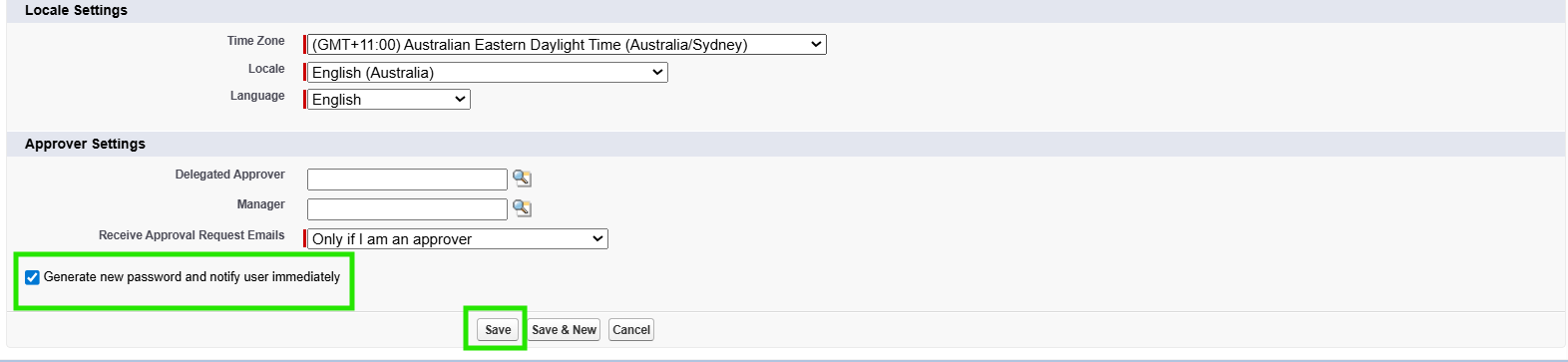
Scroll down until you see the Save button. It's recommended to select "Generate new password and notify user immediately" so the user receives their login credentials via email.
How can I find a list of users in Unity PMS?
You can view a list of all users for your organisation via the Users page in Setup.
Once you select a user, you can see an overview of the information attached to their account including: Name, email address, login history, etc.
Available Actions
- Edit - allows you to edit fields on the users' record
- Reset Password - triggers a password reset message to the user's email address.
- Login - used to login as the user and is used for troubleshooting issues faced by a specific user (only available for System Administrators)
- Freeze - Prevents the user from accessing the system and allows you time to reassign processes before deactivating a user. (only available for System Administrators)
- View Summary - see permissions and other access elements assigned to the user
Permission Set and Permission Set Group assignments can be viewed on this page and you can also edit these assignments as needed.